
A local test inbox answers a useful question: did this WordPress action produce the message you expected? It lets you inspect the recipient, subject, content and links before testing real delivery. It does not prove that a customer will receive the message in their inbox.
MailHog can provide that local inbox when the application is configured to send through its SMTP listener. The important word is configured. Starting MailHog does not automatically intercept every email route on a copied website. This guide explains the documented MailHog workflow and how to judge the result; installation details depend on your development environment.
Draw the route before sending a test
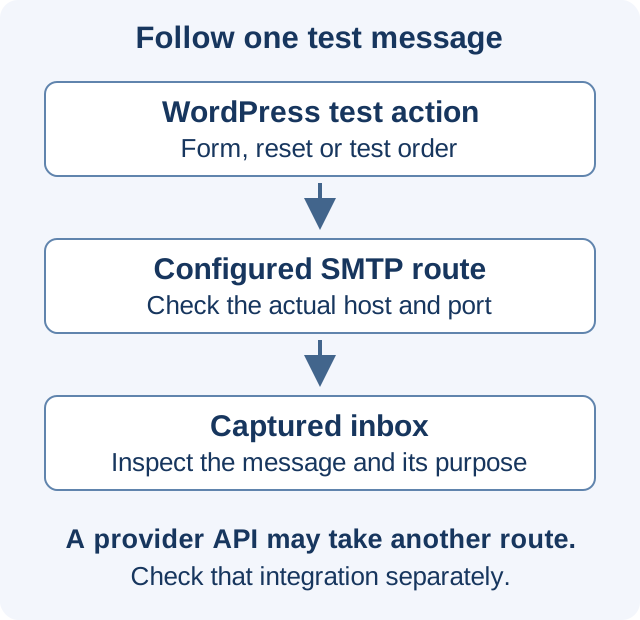
Start with one action: submitting a contact form, requesting a password reset or placing a test order. Identify which part of the site sends its message and how that component delivers mail. A plugin that calls an external provider’s HTTP API may use a different route from ordinary WordPress email.
The MailHog project documentation describes sending application mail to MailHog over SMTP, then viewing messages in its web interface or API. It also documents a feature for releasing captured messages to a real SMTP server. A captured inbox is therefore a test tool, not an unconditional guarantee that outgoing delivery is impossible.
Keep the test copy separate
Use invented test users and records. Before opening a copied site to testing, review production mail credentials, scheduled jobs and integrations that could act on real accounts. A test checkout can trigger more than an email, so use the payment provider’s supported test mode and avoid treating the mail inbox as a substitute for controlling other effects.
Keep the capture interface accessible only to the people who need it. The configuration reference lists listeners on all interfaces by default. Choose appropriate bind addresses and access controls for your environment rather than assuming that a tool described as “local” is reachable only from your laptop. Do not configure or use message release to real SMTP servers during a capture-only exercise. MailHog configuration reference.
Use the SMTP port for mail and the HTTP port for viewing
The documented defaults are port 1025 for SMTP and 8025 for the HTTP interface. These can be changed. An SMTP client pointed at the web-interface port is not using the capture service correctly, even if the browser can open the inbox.
Choose an SMTP hostname that is reachable from the process running WordPress. If WordPress and MailHog run in separate containers, localhost inside the WordPress container normally refers to that container, not its neighbor. On a suitable user-defined Docker network, containers can address each other by name. Confirm your actual network arrangement; a shared host or shared network namespace is a different case. Docker networking reference.
Configure the test installation’s mail transport through its supported settings or development configuration. Record what changed and keep the setting specific to that environment. Verify every relevant sender separately; a working password-reset test does not establish the path used by a separate newsletter integration.
Run one identifiable message through the whole path
Use a test subject or record label such as Contact test — reference 204. Start with an empty or clearly marked capture session, perform the action once and look for that exact message. Check its recipient and timestamp as well as its subject. This prevents an old successful capture from being mistaken for the result of today’s test.
Inspect what a reader would need, not only whether a row appeared in the inbox:
- Does the message go to the intended test recipient, including any copied recipients?
- Are the sender name, reply address, subject and language appropriate for this action?
- Does the body contain the relevant form fields or order details, with no unresolved placeholders?
- Do links point to the intended environment and task? A test reset link should not silently take you into the production account flow.
- Are expected attachments present, and can you inspect both the human-readable content and message source?
Four results worth investigating
These are hypothetical examples. They show how to turn a capture into a specific next check instead of changing unrelated mail settings.
The form confirms submission, but the inbox is empty
Check whether a message was triggered, queued or sent through another transport before changing the template.
Two messages arrive after one test order
Compare their purpose and recipients. A customer receipt and an administrator notification may both be intended; two identical customer receipts need a different investigation.
The test message contains a production-site link
Trace the setting or template that created that URL. Do not use the link as proof that the test copy is isolated.
The attachment exists, but contains another test record
Check how the document was selected or generated. Successful attachment transfer does not establish correct content.
Separate message generation from real delivery
WordPress explicitly notes that a successful wp_mail() return value does not prove that the recipient received the message. It means the sending method processed the request without reporting an error. A captured message provides stronger evidence about what reached the test inbox, but still says nothing conclusive about delivery through your real provider or display in every mail client. WordPress mail-function reference.
Write the result narrowly: “Reference 204 produced the expected contact notification in the local capture inbox; recipients, fields and links checked.” Do not turn it into “production email works.” Testing the real delivery route is a separate, controlled exercise with approved test recipients and the actual provider configuration.
Keep the evidence you need, then finish the test
The documented default storage is in memory, with other storage modes available. Do not rely on a temporary inbox as your permanent test record. Save the relevant observations and any required sample message according to your project’s handling rules, then remove test captures that are no longer needed.
Before transferring work to production, confirm that the capture hostname and other development-only settings will stay behind. Recheck the production mail route deliberately instead of copying an entire test configuration. If the site itself is being moved, include email in the migration checks; if someone else is conducting the test, agree on the access needed for that task.
Historical context: a November 2018 Systm Web note discussed MailHog while testing local copies of WordPress sites. The original article endpoint was unavailable in the attempted archive replay; its substantive excerpt was retrieved from an archived listing. This independent guide was checked against the linked project and WordPress documentation on November 16, 2026. Its scenarios are illustrative, not reports of client tests.