
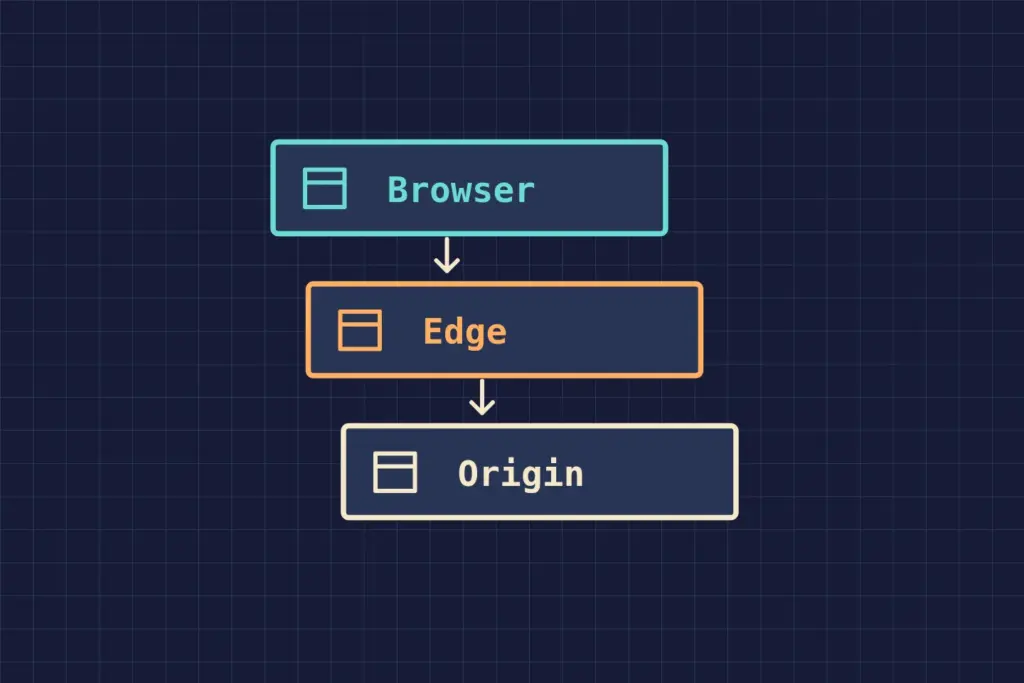
Check which service already caches your public WordPress pages before adding WP Rocket. A managed host may handle page caching itself. WP Rocket can sometimes keep its other optimizations while leaving that layer to the host. Support depends on the specific plan and integration.
The 2019 Systm Web help answer gave the historical context. Some hosts restricted third-party caching plugins, and the vendor was working with hosting providers. The note named no plan-specific exception. For a current installation, compare your host’s documentation with WP Rocket’s hosting compatibility notes.
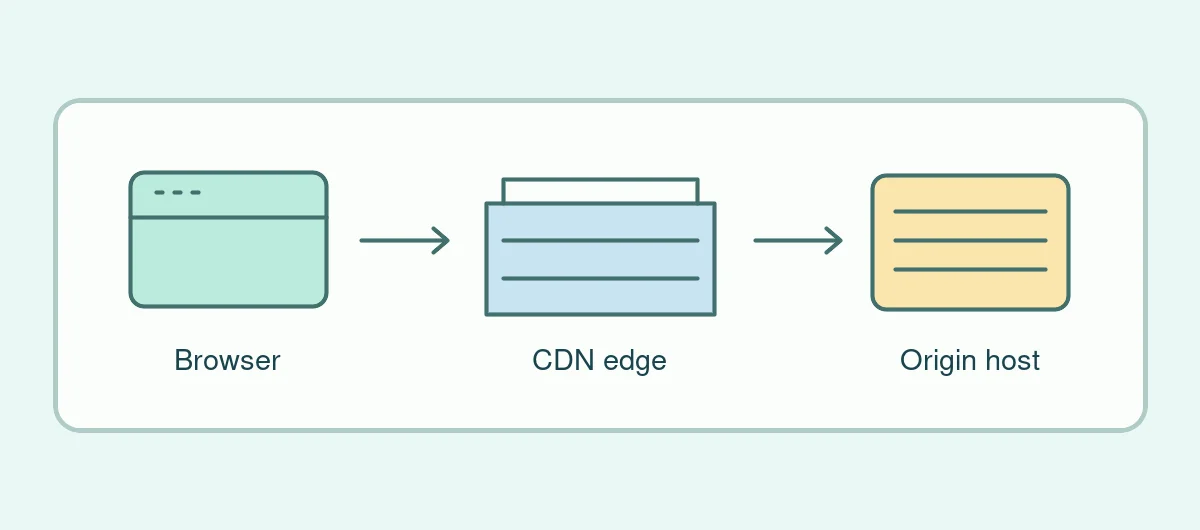
Find who serves the saved HTML
Open a public article signed out and repeat the same visit. In the browser’s Network panel, select the document response and read any cache header your host publishes. If your site uses Cloudflare, its CF-Cache-Status describes the edge response only. A Cloudflare DYNAMIC response can still come from a page cache at the origin. Use the Cloudflare cache response definitions when interpreting those headers.
Next, check how a publication edit reaches each layer. On a staging site set up like production, change a visible phrase in a test article and publish it. Reload as a signed-out reader. Check the article and one relevant listing, such as the category page where its title appears. If the old version persists, identify the layer that served it and check how that layer refreshes or clears its copy. Keep the test page and its expected text in your notes so the result is easy to reproduce.
Pick the feature based on the delay
If the document is already delivered quickly and the large header image appears late, start by checking that image. If generating an uncached page takes most of the time, investigate how WordPress builds it. A clear symptom makes it easier to decide whether to change hosting, optimize a file or correct a stale cache. The WordPress slowdown guide walks through the distinctions.
Verify the pages a cache ought to leave alone
Test the common public view and any page that depends on the visitor’s account or session. A shop’s account and checkout pages have different requirements from a public guide. Use your host’s supported exclusions and verify them on staging with two independent sessions. When two tools both claim to clear cached pages, test what happens after an edit before relying on that integration.
Record one decision for each layer: who owns it, who clears it, and how you know a visitor gets the new version. For comparing before and after a hosting change, use the platform-upgrade test notes.