
Make the smallest WordPress installation that can reproduce the behaviour you want to check. A clean local site answers whether a theme or plugin works on its own. A disposable copy of the affected setup answers whether its data and configuration are part of the problem. Systm Web used ValetPress to make the first kind of test quick to repeat.
Where ValetPress appeared in the archive
The surviving Daily Grind listing has one visible entry, “What We Use: ValetPress,” dated November 13, 2018. Its introduction describes a series about tools the team used in its everyday work. That listing preserves the title and the opening, while the author’s 2018 ValetPress repository supplies the technical details below.
The earlier ValetPress introduction
A Systm Web News listing also shows a separate introduction dated September 8, 2018, with a later date displayed beside it. The excerpt mentions setting up local WordPress to test a theme or plugin. Neither standalone article body was available in the retrieved captures. The procedure here is a new example built around the documented workflow.
What each part of the setup did
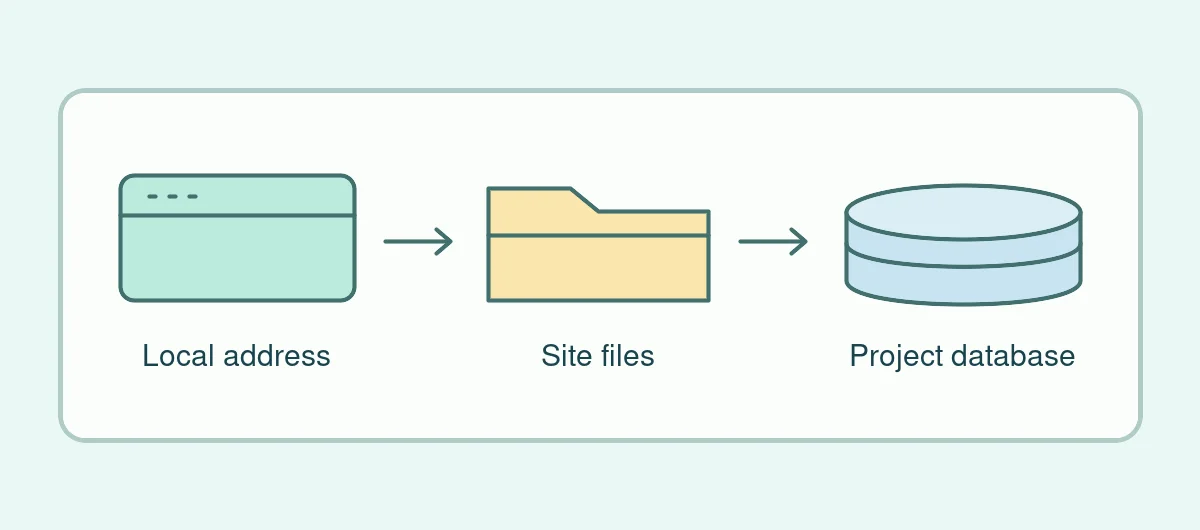
Laravel Valet routed the local name to a project on the Mac. A local MySQL or MariaDB instance stored the data. WP-CLI created and configured WordPress. ValetPress joined those steps under one project name so an experiment could start with its own directory and database. The historical configuration also let the author choose plugins and control whether a browser opened after installation.
The 2018 script could create a test login automatically and remove a project’s directory and database. Those defaults belong to a disposable local installation. Use test-specific credentials, check which project you are about to remove and keep the site off the public internet. On a modern setup, check your local tooling and versions against the Laravel Valet documentation and the WP-CLI reference.
A two-install test for a theme update
- Build a clean reference site. Note the WordPress and PHP versions, the theme version and the plugin you need. Add a short sample post with a wide image and enough headings to reproduce the layout you want to inspect.
- Prepare a separate comparison site. Use the same versions and add only the relevant setting or content shape from the affected installation. Replace any customer details and test with local data.
- Change one thing. Apply the theme update to that comparison site. Open the same page at desktop and phone widths. Check the page in a signed-out browser as well if caching or logged-in markup changes what visitors see.
- Record the first meaningful difference. If either install shows a clipped wide block, you have a compact test case. If the problem appears only with the imported layout, reduce that layout until you can point to the block or setting that triggers it.
Give each install an obvious name and keep the test notes next to it. The useful artefact is often one sample post, a version list and a pair of screenshots. Check outbound messages separately with the MailHog guide, and consult the WordPress maintenance checks before turning a local change into a live update.